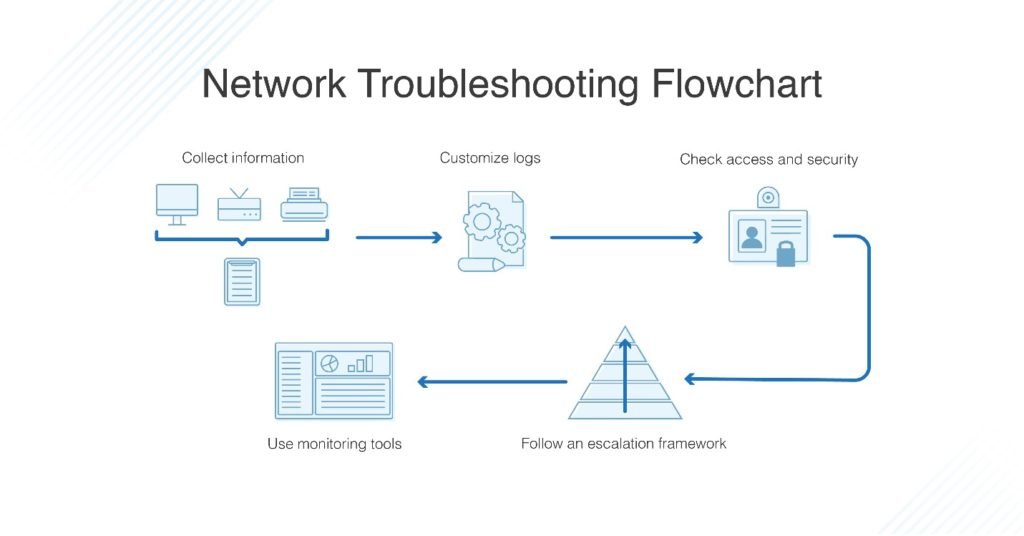
It's happened to everyone: you click a video meeting link, eager to connect, only to be plunged into a frustrating world of frozen screens, garbled audio, and dropped calls. In an era where video communication is the backbone of work, learning, and staying connected, mastering Troubleshooting & Best Practices for Video Link Management isn't just about technical know-how—it's about ensuring clear connections, maintaining productivity, and preserving sanity.
This isn't just about sharing a URL; it’s about understanding the entire ecosystem that makes that link a portal to effective communication. From the moment you generate it to the final farewell, every step impacts the quality of your virtual interactions.
At a Glance: Your Roadmap to Flawless Video Links
- Proactive Planning is Key: Choose the right platform, share links securely, and set clear agendas before the meeting begins.
- Network is King: Prioritize stable internet, optimize bandwidth, and consider a wired connection.
- Audio First, Always: Clear audio often matters more than perfect video, especially on slower connections.
- Video Enhancements Matter: Adjust settings, lighting, and backgrounds for a professional appearance.
- Troubleshoot Systematically: Address common issues like lag, audio delay, and connectivity problems with practical steps.
- Security is Non-Negotiable: Use password protection, waiting rooms, and updated software to protect your calls.
- Engage for Impact: Utilize meeting features and good facilitation to keep participants focused and productive.
The Lifeline of Modern Communication: What "Video Link Management" Really Means
When we talk about video link management, we're discussing more than just copying and pasting a URL. It encompasses the entire lifecycle of a virtual connection:
- Creation: Generating a secure, functional link using the appropriate platform.
- Distribution: Sharing that link effectively and securely with participants.
- Connection: Ensuring all participants can join the meeting without technical hurdles.
- Maintenance: Optimizing the live call experience—audio, video, bandwidth—for all involved.
- Troubleshooting: Rapidly diagnosing and resolving issues that inevitably arise.
Essentially, it's about making sure your digital handshake is firm, clear, and reliable, from invite to goodbye.
Proactive Link Management: Setting the Stage for Success
The best troubleshooting is often prevention. By managing your video links effectively before anyone even clicks "join," you lay a strong foundation for a smooth meeting.
Choosing the Right Platform for Your Needs
Not all video conferencing software is created equal. Different platforms excel in specific areas, from security features to bandwidth optimization, screen sharing capabilities, and device compatibility. Consider:
- Security Features: Does it offer end-to-end encryption, password protection, and waiting rooms?
- Participant Capacity: Can it comfortably host your expected number of attendees?
- Bandwidth Optimization: Does it have built-in features to reduce data usage on slower connections?
- Integration: Does it play nicely with your calendar, CRM, or project management tools?
- Ease of Use: Is it intuitive for all participants, regardless of their technical proficiency?
By aligning the platform with your meeting's purpose and participants' needs, you proactively solve many potential issues. For those looking to streamline this process, exploring tools that simplify meeting setup can be invaluable. You might find that leveraging our video link generator guide can significantly cut down on the time and effort required to get your virtual space ready.
Crafting & Sharing Links Securely
A well-managed link is a secure link. Careless sharing can lead to "zoom bombing," unauthorized access, or the exposure of sensitive information.
- Password Protect Meetings: Always enable a password, especially for external or sensitive discussions.
- Utilize Waiting Rooms: This allows you to vet participants before they enter the main meeting.
- Don't Share Publicly: Avoid posting meeting links on public social media or unprotected websites. Send them via secure email, calendar invites, or trusted messaging platforms.
- Require Registration: For larger webinars, requiring registration adds an extra layer of control and data gathering.
- Regularly Update Software: Software updates often include critical security patches.
Setting Clear Expectations with Meeting Agendas
While not directly about the link itself, a well-structured meeting agenda is a crucial component of effective video link management. It guides participants, maximizes efficiency, and minimizes the need for impromptu screen sharing or prolonged discussions that can strain bandwidth. Clearly outline topics, speakers, and expected outcomes to keep everyone on track.
Optimizing Your Digital Arena: Network & Bandwidth Fundamentals
The quality of your video call hinges largely on your internet connection. Even the most perfectly crafted link can't overcome a sluggish network.
Assessing Your Network's Readiness
Before any important call, it's wise to perform a quick health check on your internet connection.
- Check Your Speed: Use online tools like Ookla Speedtest (speedtest.net) to measure your upload and download speeds. For HD video calls, a minimum of 1 Mbps upload/download per participant is often recommended, but 5-10 Mbps is ideal for a smoother experience, especially with multiple participants or screen sharing.
- Monitor Stability: High latency (ping) or jitter can be more disruptive than simply low speed. These indicate an unstable connection that can lead to audio delays and choppy video.
- Minimize Interference: Other devices on your network (smart TVs streaming 4K, large downloads, gaming consoles) can hog bandwidth.
Bandwidth Optimization Strategies
When your internet connection is less than ideal, these strategies can make a significant difference:
- Close Unnecessary Applications: Background apps, browser tabs, and ongoing downloads/uploads consume precious bandwidth. Shut them down.
- Limit Connected Devices: If possible, ask others in your household to pause heavy internet usage during your call.
- Adjust Video Quality: Most video conferencing platforms allow you to lower your camera resolution or frame rate. Disabling your video entirely, especially if audio clarity is paramount, is a powerful trick.
- Optimize Screen Sharing: Reduce screen resolution when sharing or, better yet, share only specific windows instead of your entire desktop. Avoid simultaneous screen sharing.
- Utilize Platform Features: Many video call software options include bandwidth optimization features. Familiarize yourself with these settings.
Wired vs. Wireless: A Clear Winner
While Wi-Fi offers convenience, a wired Ethernet connection is almost always superior for video calls.
- Stability: Wired connections are far less prone to interference from other devices, walls, or even microwaves.
- Speed: They generally offer faster, more consistent speeds.
- Reduced Latency: A direct connection minimizes signal travel time, reducing frustrating audio and video delays.
If an important meeting is on the horizon, consider temporarily running an Ethernet cable from your router to your computer.
The VPN Question: Friend or Foe?
Using a Virtual Private Network (VPN) can introduce a layer of security and privacy, but it can also be a double-edged sword for video calls.
- Potential for Latency: VPN encryption and routing traffic through remote servers can add latency and reduce bandwidth, potentially causing audio distortion or video lag.
- Performance Impact: This impact can affect screen sharing and camera settings, making real-time interaction more challenging.
- Balancing Act: If you must use a VPN, ensure it's a high-quality service known for speed, compatible with your video platform, and consider optimizing your video quality settings to reduce strain. Test your audio and video quality while connected to the VPN before your meeting.
Sometimes, for critical calls, temporarily disabling your VPN might be necessary to ensure optimal performance, if security protocols allow.
Crystal Clear Communication: Mastering Audio & Video Quality
Even with a strong connection, poor settings or environmental factors can derail your meeting. Focusing on these elements ensures you sound and look your best.
Achieving Pristine Audio
Poor audio quality—whether it's echoing, static, or delays—is often cited as the biggest frustration in virtual meetings.
- Use a Headset/Earphones: This is the single most impactful tip. Headsets with built-in microphones drastically reduce background noise and prevent echo.
- Mute When Not Speaking: A simple courtesy that prevents accidental noise interference.
- Dedicated Microphone: If you frequently host calls, investing in a good quality external USB microphone can elevate your audio from good to excellent.
- Check Audio Settings: Verify your microphone and speaker selections within your video conferencing software. Sometimes the wrong device is chosen by default.
- Minimize Background Noise: Find a quiet location. Close windows, turn off noisy fans, and silence notifications.
- Update Audio Drivers: Ensure your computer's audio drivers are up to date.
Crafting Professional Video
While less critical than audio for pure communication, good video quality enhances engagement and professionalism.
- Good Lighting is Key: Position yourself facing a light source (a window or lamp), not with a bright light behind you. Avoid glare. Good lighting ensures your face is clear and visible.
- Camera Angle: Position your camera at eye level. This usually means elevating your laptop or monitor.
- Clean Background: A simple, uncluttered background is best. Avoid distracting virtual backgrounds if your bandwidth is limited or your computer struggles with them.
- Check Camera Settings: Most platforms allow you to adjust brightness, contrast, and resolution. Lowering resolution can save bandwidth.
- Maintain Eye Contact: Look at your camera, not just the screen, to appear more engaged.
Optimizing for Mobile Devices
Video calls on the go have their own set of challenges and best practices:
- Utilize Stable Wi-Fi: Always prioritize a strong, stable Wi-Fi connection over cellular data for faster, more reliable connectivity. If possible, sit close to your router.
- Manage Battery Life: Video calls are battery intensive. Adjust in-app power-saving modes and lower screen brightness. Keep your device plugged in if possible.
- Adjust Video Settings: Mobile apps often have options to reduce video resolution or frame rate. Disable virtual backgrounds, which can strain device resources and bandwidth.
- Minimize Background Activity: Close unnecessary apps running in the background and silence notifications.
- Privacy & Security: Be mindful of your surroundings when on video calls in public. Adjust app privacy settings for screen sharing and participant visibility. Use meeting passwords.
- Use Headphones: Essential for clear audio and reducing background noise on mobile.
Troubleshooting Common Pitfalls: When Things Go Sideways
Even with the best preparation, issues can arise. Here’s how to quickly diagnose and fix the most common video call problems.
"My Video Is Lagging/Freezing!" (Slow Internet)
This is typically a bandwidth or network stability issue.
- Restart Your Router/Modem: A classic IT fix, but often effective.
- Close Background Apps: As mentioned, this frees up bandwidth.
- Switch to a Wired Connection: If you're on Wi-Fi, try connecting an Ethernet cable.
- Lower Video Quality: Ask participants to turn off their cameras or lower their resolution.
- Check for Large Downloads: Ensure no one on your network is hogging bandwidth.
- Update Software: Outdated video conferencing software can have bugs that affect performance.
- Prioritize Network Traffic: Some modern routers allow you to prioritize certain devices or applications (Quality of Service - QoS settings).
"Why Is There an Audio Delay?"
Audio delays or echoes are usually caused by latency, often related to network issues or improperly configured audio devices.
- Check Network Stability: Ensure a stable internet connection with low ping. Use a wired connection.
- Update Software: Keep your video conferencing software updated.
- Optimize Bandwidth: Close background applications.
- Verify Audio Settings: Double-check that the correct microphone and speakers are selected. Ensure you're not using your computer's built-in mic and speakers simultaneously without echo cancellation.
- Use a Headset: This significantly reduces the chance of echo.
- Review Privacy Settings/Firewalls: Sometimes firewalls or VPNs can inadvertently cause delays. Temporarily disabling them (if safe) can help diagnose.
- Minimize Background Noise: A noisy environment can force your microphone to work harder, potentially introducing delay.
"My Link Isn't Working!" (Basic Connectivity Checks)
Before you panic, go through these fundamental checks:
- Internet Connection: Can you access other websites? If not, troubleshoot your internet connection first (restart router, check cables).
- Correct Link: Double-check that you've clicked or pasted the exact, correct link. Typo?
- Platform Compatibility: Do you have the necessary software or browser extension installed?
- Server Status: Is the video conferencing platform itself experiencing an outage? Check their status page if available.
- Firewall/Antivirus: Temporarily disable your firewall or antivirus to see if it's blocking the connection (re-enable immediately afterward!).
Fortifying Your Virtual Space: Privacy & Security Best Practices
Beyond technical glitches, ensuring the privacy and security of your video calls is paramount. Managing the "link" here extends to managing access.
Securing Your Meeting Environment
- Password Protect Meetings: As mentioned, a non-negotiable step.
- Enable Waiting Rooms: Always use them to control who enters your meeting.
- Utilize Unique Meeting IDs: Avoid using your Personal Meeting ID for sensitive meetings, as it's a static link. Generate unique IDs for each session.
- Manage Screen Sharing: Only allow hosts or specific presenters to share screens to prevent malicious or accidental sharing.
- Lock the Meeting: Once all expected participants have joined, lock the meeting to prevent late joiners.
- Control Chat/File Sharing: Adjust settings to prevent unwanted chat messages or file sharing.
- Update Software: Keep your video conferencing application updated for the latest security patches.
Minimizing Digital Distractions: Noise, Lighting, and Background
While these don't directly relate to the link, they significantly impact the quality of the virtual experience initiated by the link. They are crucial environmental factors you manage for a better call.
- Background Noise Reduction: Use noise-canceling headphones, find a quiet space, and use the platform's built-in noise suppression features. Mute your microphone when not speaking.
- Lighting Tips: Always face your light source. Natural light from a window is best. Avoid backlighting (light source behind you), which will make you appear as a silhouette.
- Professional Background: Opt for a clean, uncluttered physical background. If using virtual backgrounds, ensure your system can handle it without quality degradation.
Beyond the Link: Fostering Engaging Virtual Meetings
The purpose of a video link is to facilitate communication. Once connected, effective management shifts to engaging participants and maximizing productivity.
Keeping Participants Engaged
- Encourage Active Participation: Use chat features for questions, polls for quick feedback, and breakout rooms for smaller group discussions.
- Utilize Visual Aids: Share relevant documents, presentations, or even a whiteboard feature to keep discussions dynamic.
- Short and Sweet: Respect people's time. Keep meetings focused and avoid unnecessary tangents.
- Take Breaks: For longer meetings, schedule short breaks to combat "Zoom fatigue."
Streamlining Participant Management
- Designate a Moderator: For larger meetings, having someone manage the chat, mute participants, and help with technical issues frees the host to focus on content.
- Use Mute Functions: The host or moderator should be able to mute all participants, or individual participants, when background noise becomes disruptive.
- Leverage Collaboration Tools: Integrate with whiteboards, document sharing, and other tools that allow real-time collaboration.
Your Next Steps to Seamless Connections
Mastering video link management is an ongoing process. Technology evolves, and so do the challenges. By taking a proactive approach, understanding the technical underpinnings, and having a systematic troubleshooting framework, you can transform frustrating video calls into productive, clear, and engaging interactions.
Start by auditing your current setup: check your internet speed, test your audio and video, and familiarize yourself with your chosen platform's settings. Then, apply these best practices consistently. A little preparation goes a long way in ensuring that every click of a video link leads to a clear connection, not a communication breakdown.